
Overview
You can use this endpoint to upload a document to an existing Warehouse Inventory Transfer (WITR). To do that, you must be an Authenticated User.
As soon as you authenticate and receive a valid token, it needs to be passed to the service call.
Endpoint
An example of such an endpoint for XX server is:
https://xx.api.sellercloud.com/rest/api/WarehouseInventoryTransfers/{id}/Documents
For your server, the endpoint will be:
https://{your_server_id}.api.sellercloud.com/rest/api/WarehouseInventoryTransfers/{id}/Documents
Request
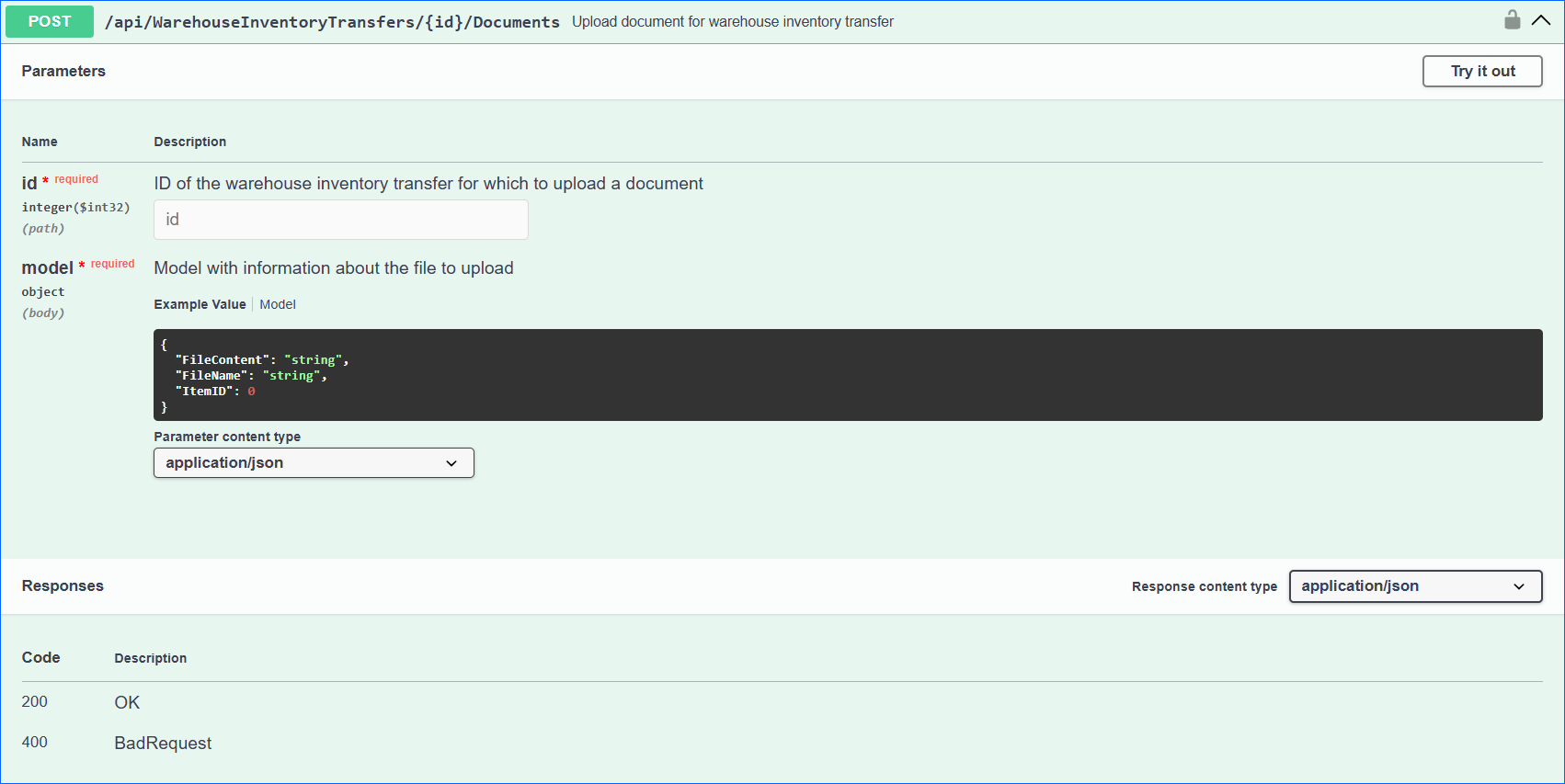
- Method Type: HttpPost
- Authorization: Use Bearer Token (where ‘Token’ is the token received from token authentication)
- Header info: Content-Type: application/json
- Parameters: ID of the WITR for which to upload a document
- Request Body:
{
  "FileContent": "string",
  "FileName": "string"
  "ItemID": 0"
}
| Parameter | Data Type | Description | Is Required |
| FileContent | string | Base 64 encoded string representing the file content.
Example of how to get Base 64 encoded string of a file in c#: var fileContent = Convert.ToBase64String(File.ReadAllBytes(“”)); |
Yes |
| FileName | string | The name of the file to upload. The file extension should be included. Example “document.xlsx”. | Yes |
| ItemID | integer | The ID of the warehouse inventory transfer product item. Can be obtained by calling Get WITR Products. | No |
Response
- If the user is authenticated and the document upload is successful, then the response will be Status Code 200 => OK
- If an incorrect FileName or FileContent is provided, then the response will be Status Code 400 => Bad Request
- If the user is not authenticated, then the response will be Status Code 401 => Not Valid Token
- In case of error, the response will be Status Code 500 => Internal Server Error